
The usual way to watch live TV on a Mac still looks the same in 2026. You open a browser tab or a basic player, load an M3U, and start scrolling. Channel names are long. There is no reliable Now and Next. Switching takes extra clicks. After twenty minutes you are either on the wrong stream or back in a list trying to remember what you were watching.
That is not a Mac problem. It is a player problem.
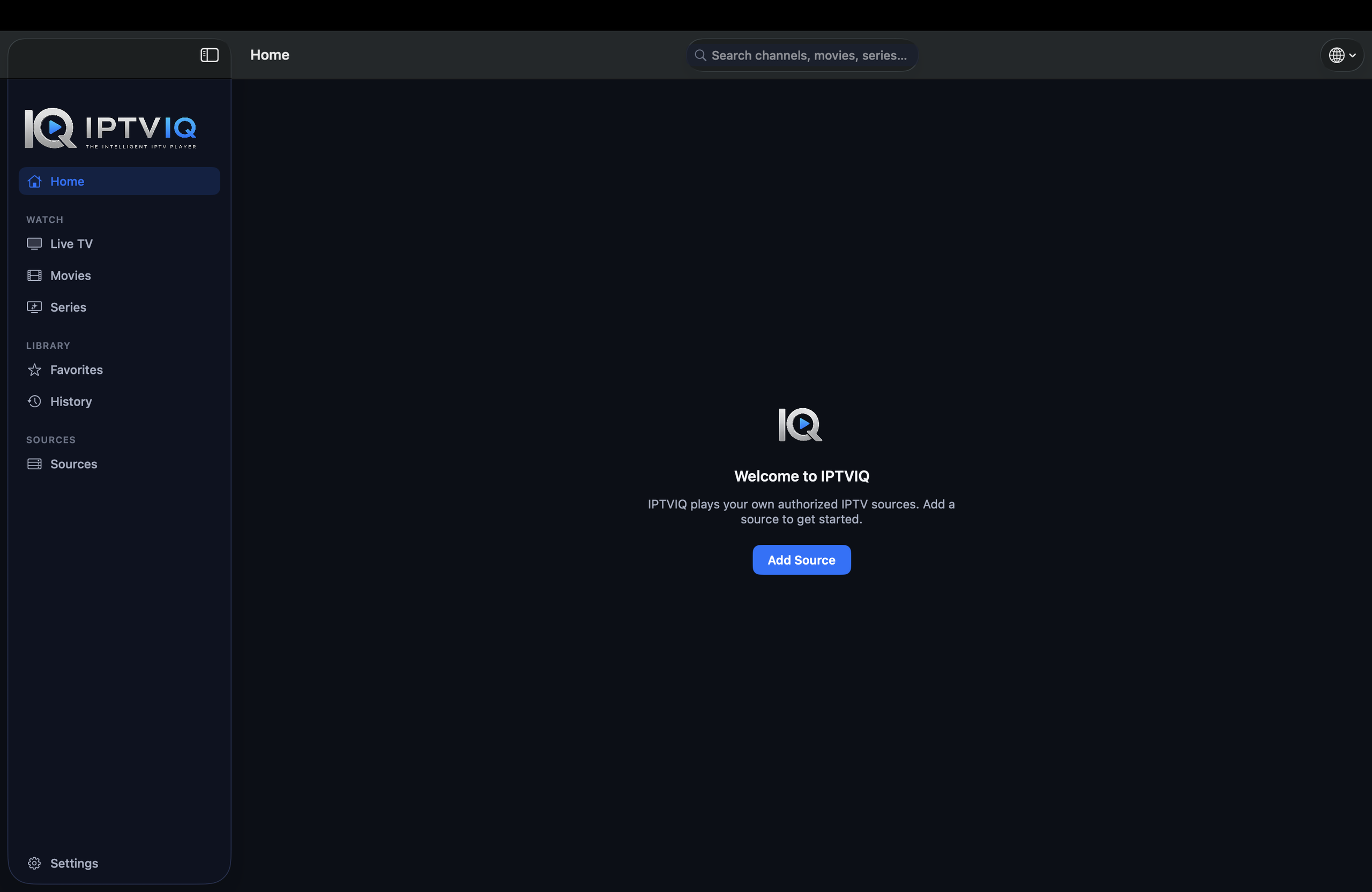
IPTVIQ is a native macOS player built to remove most of those steps. It runs on macOS 14 and later. You bring your own authorized source. The app organizes it so live TV behaves more like live TV and less like a spreadsheet.

What Changes When the Player Actually Helps
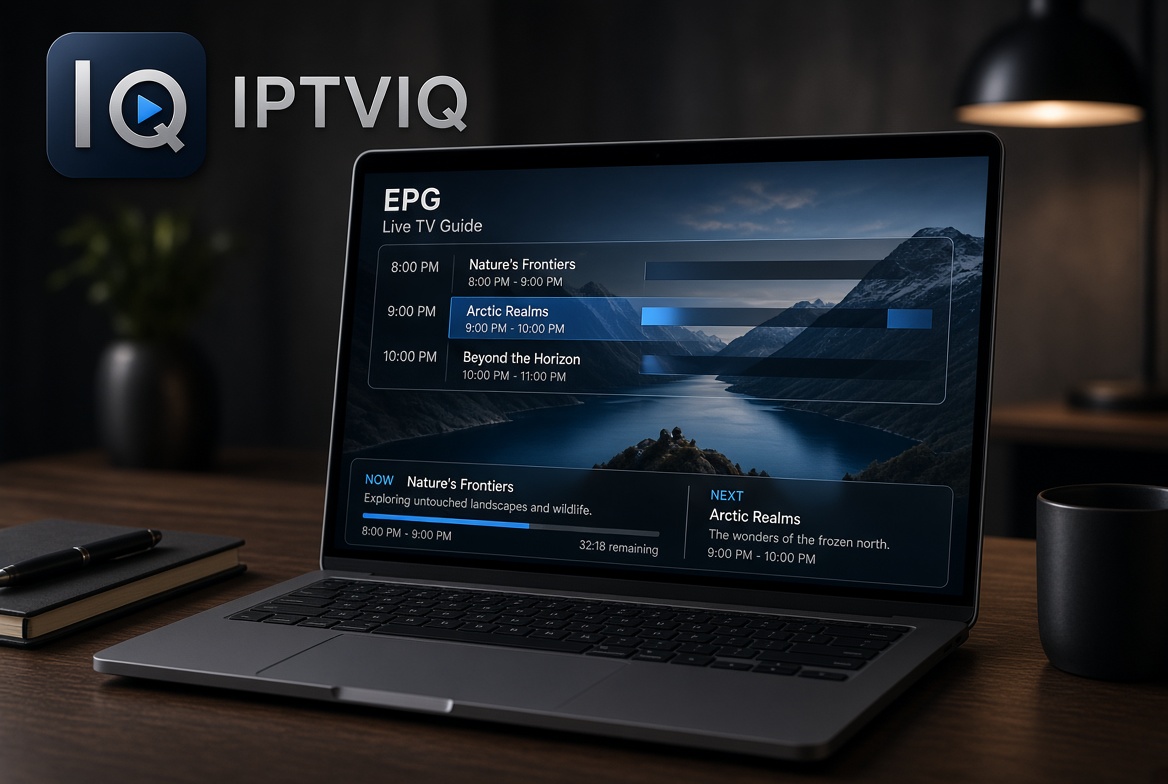
IPTVIQ accepts Xtream Codes accounts, M3U or M3U8 playlists, XMLTV guides, and Stalker/MAG/Ministra portals. Once the source is imported, Live TV appears in categories instead of one endless list. You can enter a channel number directly. Recall brings back the last channel. During playback a mini-EPG overlay shows what is on now and what comes next. You do not have to leave the stream just to decide whether to stay or switch.
These tools do not invent content. If your provider does not send guide data, the overlay stays empty. If a channel is not in your source, it does not appear. Playback stays direct from your provider to the Mac.
Why the Guide Matters More Than the Player Brand
Most people do not switch players because of logos. They switch because they are tired of guessing. A mini-EPG overlay removes the guess. Numeric entry removes the scroll. Recall removes the “what was I just watching” moment. On a Mac used for short sessions—between meetings, in the evening, while something else is open—these small reductions add up.
On-Demand Still Lives in the Same App
Movies and Series from compatible sources appear as a separate catalog. Continue Watching remembers where you left off. When an episode ends, the next one is available. You do not need a second app for on-demand if your source already supplies it.
Catch-up and Local Recording
Where a provider supports it, you can start a recent program from the beginning or step back through recent broadcasts. This remains source-dependent. Manual DVR lets you record a live stream you are authorized to watch and save the file to a folder you choose. It is personal time-shifting only. Scheduled recording from the guide is planned and not available yet.
Multiview and Connection Handling
Two streams can play side by side. Smart Recovery detects real playback stalls from brief connection drops and reconnects automatically. It is deterministic logic, not an AI feature.
Profiles on a Shared Mac
Separate profiles keep history and favorites private. Kids profiles enforce approved-content rules across Home, Search, Guide and playback. Even if more than one person uses the same Mac, the library does not turn into a shared mess.
Multiple Sources Without Extra Apps
You can add more than one source and switch between them. Each can use its own proxy setting (Direct, HTTP, HTTPS or SOCKS5). The same guide tools and profiles apply across all of them.
Current Platforms
The public app today is for macOS 14+. Apple TV is in testing. iOS, iPadOS, Windows, Android and Android TV are planned. Cloud Sync of user state is part of the longer roadmap. It would sync settings and library state only; video continues to come directly from your provider.
Practical Comparison
| Capability | Typical Basic Player | IPTVIQ Today | Longer Direction |
|---|---|---|---|
| Mini-EPG overlay | Rare | Yes | Yes |
| Now / Next per channel | Limited | Yes | Yes |
| Numeric entry + Recall | Sometimes | Yes | Yes |
| Organized categories | Rare | Yes | Yes |
| Continue Watching | Rare | Yes | Yes |
| Manual local DVR | Sometimes | Yes | Yes |
| Profiles + Kids rules | Rare | Yes | Yes |
| Other platforms | Mixed | macOS only | Planned |
Who Finds This Useful
This approach suits people who already have a source and who are tired of treating live TV on a Mac like a raw list. It is practical if you want guide information without leaving the stream. It is less useful if you are looking for channels included with the player itself.
Setup Steps
- Download IPTVIQ from the Mac App Store.
- Add the Xtream, M3U, XMLTV or Stalker source you already use.
- Open Live TV and use the mini-EPG overlay.
- Create profiles if more than one person watches.
Disclaimer
IPTVIQ does not host or supply content. Use only sources you are authorized to access. Recording is for personal time-shifting. Guide accuracy and catch-up availability depend entirely on the provider.
The best way to watch live TV on a Mac is still the same simple idea: keep the source you already trust and stop fighting the interface. IPTVIQ organizes that source so categories, mini-EPG and Continue Watching do the work that basic players leave to you. Your provider stays your provider; the player simply makes the watching part less interrupted.


